The UGC sneaker review that looks phone-filmed — and never was
One brief became a warm, honest-to-camera sneaker review — the kind of authentic UGC that actually converts, with nothing filmed. The exact reference image, brief and settings are below; hit Recreate to open it in TurboClip, pre-filled.
Watch it first. A kid sits on the edge of his bed, posters behind him, warm lamp light, and holds a pair of sneakers up to the camera like he's telling you a secret. He talks — genuinely, a little hyped, the way you talk about something you actually own. He flexes the sole, turns the shoe to the light, points out the stitching. It looks exactly like a clip a friend would send you. None of it was filmed.
This is the format paid social rewards more than any other: honest, unpolished, human. And it's the format AI is supposed to be worst at — the tell on most AI video is that it looks too clean, too staged, nobody talks like that. So I set out to make the opposite: a review believable enough that you'd never think to question it. The trick is that he genuinely speaks — native dialogue, lip-synced, spoken by the model itself, not a narrator dubbed over silent footage. The same shoe stays in his hands the whole time. The framing is loose and phone-shot on purpose. All of it from one reference image and one brief, typed into our own AI Ad Creator.
Now imagine this instead: it's your serum he turns to the light. Your protein tub he shakes at the camera. Your app on the phone he's holding. Same warm, believable, talking-to-camera review — for your product, in a setting that suits it. And it costs a few dollars and a few minutes, not a creator brief, a week's wait, and a few hundred dollars for a clip that might flop. Below is exactly how I built this one, start to finish — from the reference frame to the finished file.
Step 1 — Prepare your reference image
Every shot in this ad grows from a single opening frame: the creator, his room, and the sneakers in his hands. Generate that frame once and the character, the setting and the product stay locked across every shot the AI writes — no drifting face, no morphing shoe. It's the five minutes that saves the whole ad from feeling AI.
I made mine with the image prompt below, generated on Nano Banana (3 Pro) at 1K, 16:9 — match the ad's aspect ratio here so the frame drops straight in without any awkward crop. The one rule: don't describe the shoe in words — drop your real product photo in when you generate this, and let the photo carry the look. Everything else — the guy, the bedroom, the light — is the prompt's job.
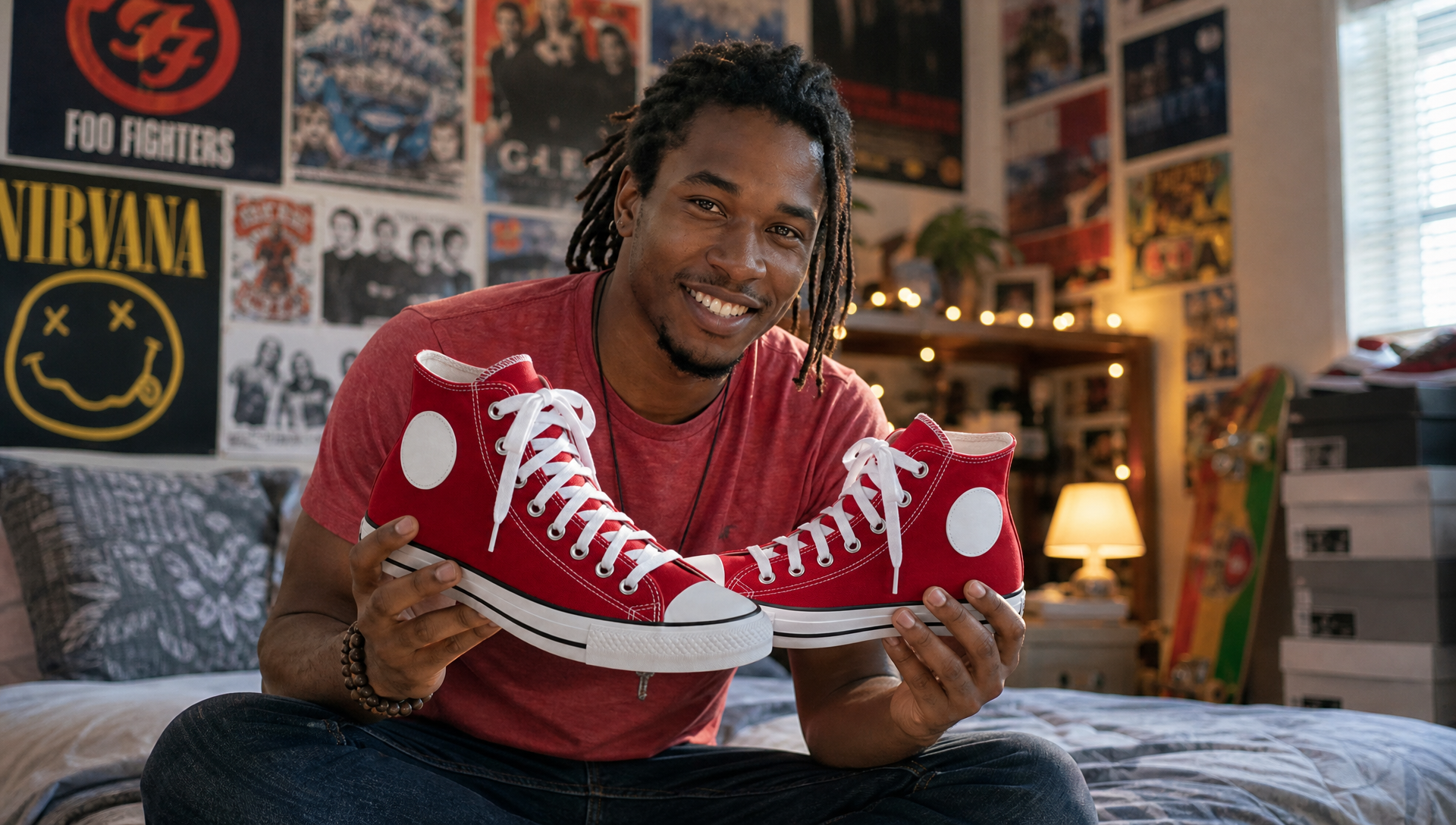
The reference frame the whole ad builds from — GPT Image 2, 1K, 16:9, with the real sneaker dropped in as a product photo.
In the AI Ad Creator, this frame goes under Reference images. Because it already has your product in it, the real shoe shows up — recognisably the same — in every shot.
Step 2 — Specify your brief
With the reference frame ready, the ad itself comes out of one brief — pasted, word for word, into "Describe your ad." I didn't write shots or timings. I described the concept — an honest review from someone who loves the shoe, the beats it should hit, the tone — and let the creative director size it up and write the ad.
And the settings I matched:
- Aspect ratio → 16:9 (landscape — built for YouTube and the in-feed player)
- Video model → Gemini Omni Flash (frontier realism with native audio, the cheapest premium tier)
- Script → Opus 5.5
- Audio → On — this is what lets him actually speak the review out loud
- Linked → Off (see below)
- Length → 30s
- Shots → Auto — let the segmenter decide how many the review needs
- Reference images → the frame you made in Step 1, so the real shoe carries through every shot
Then hit Create Ad, and it writes the shots, the dialogue and the voice for you. Or skip the setup entirely — the Recreate in TurboClip button opens the creator with the brief and every one of these settings already dialled in (just add your reference image).
Step 3 — Frame your brief
Right after you hit Create Ad, before anything gets written, there's a quick gut-check: Let's frame this. A creative producer reads your brief and — only if something load-bearing is missing, like who it's really for or the actual win the viewer walks away with — asks a question or two to draw it out. Each one comes with a few one-tap answers to react to, or you write your own.
It's a light touch on purpose. A brief that already knows who it's for sails straight through — the best answer is often no question at all, and you just hit continue. It never pitches you a creative angle or decides the look; it only fills genuine gaps so the next step has something solid to build on.
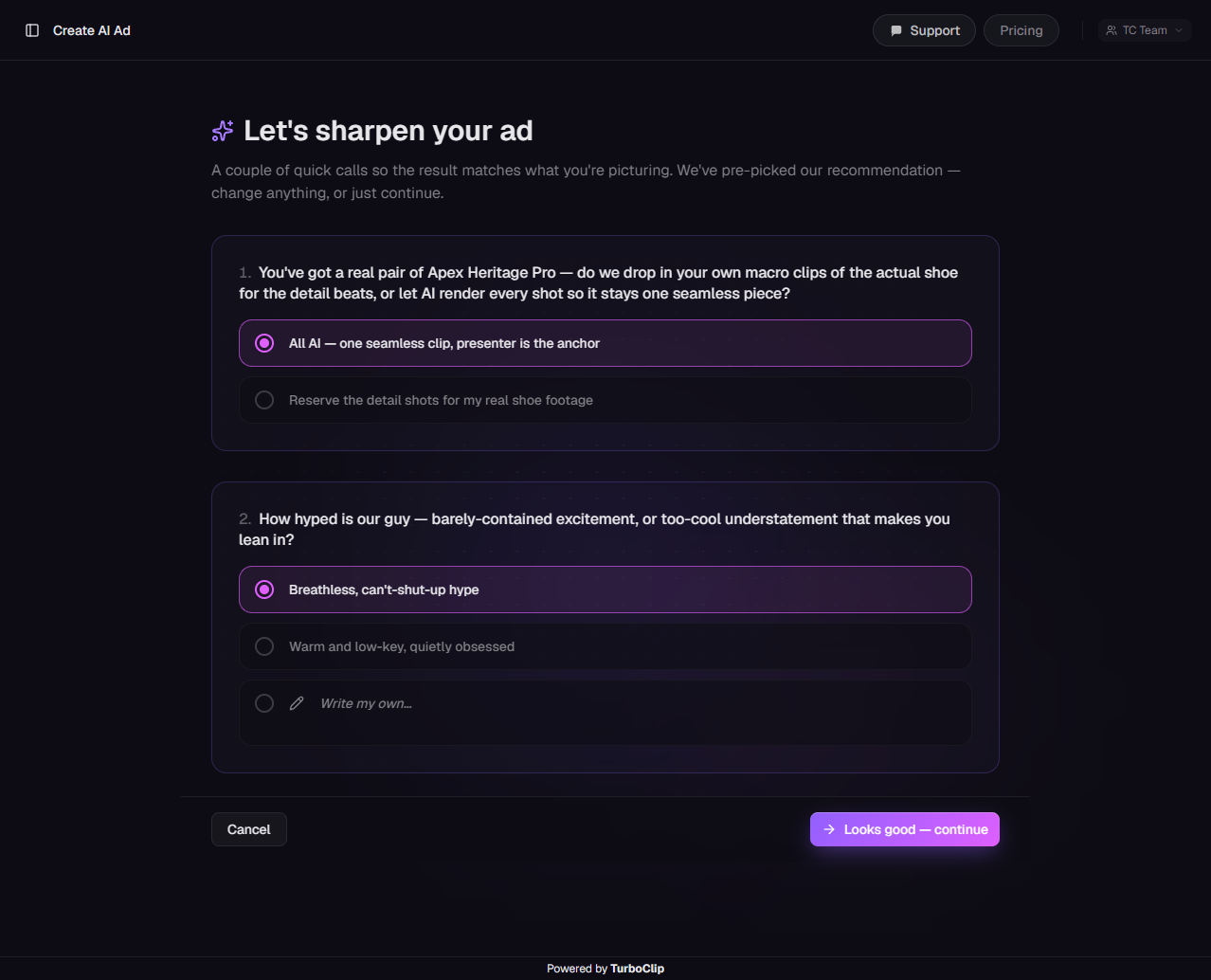
A quick steer before the ad is written — pick a suggestion, write your own, or just continue.
Mine already named the audience and the tone, so this was a five-second confirm-and-continue. On a one-line brief, it's where a vague idea gets the one detail that makes it land.
Step 4 — Review your ad shot list
Hitting continue doesn't fire off a black box. Before a single frame renders, you get the shot list — exactly how your brief broke into shots, the framing and timing of each, and every line he says. This is where a one-paragraph brief becomes a real plan, and where you keep hold of it.
Mine split into a handful of shots that tracked the beats I'd described: an opening hook straight to camera, a couple of tight detail shots — the sole flex, the shoe turned to the light — and a closing sign-off with the product name landing over it. Each with its own lip-synced line.
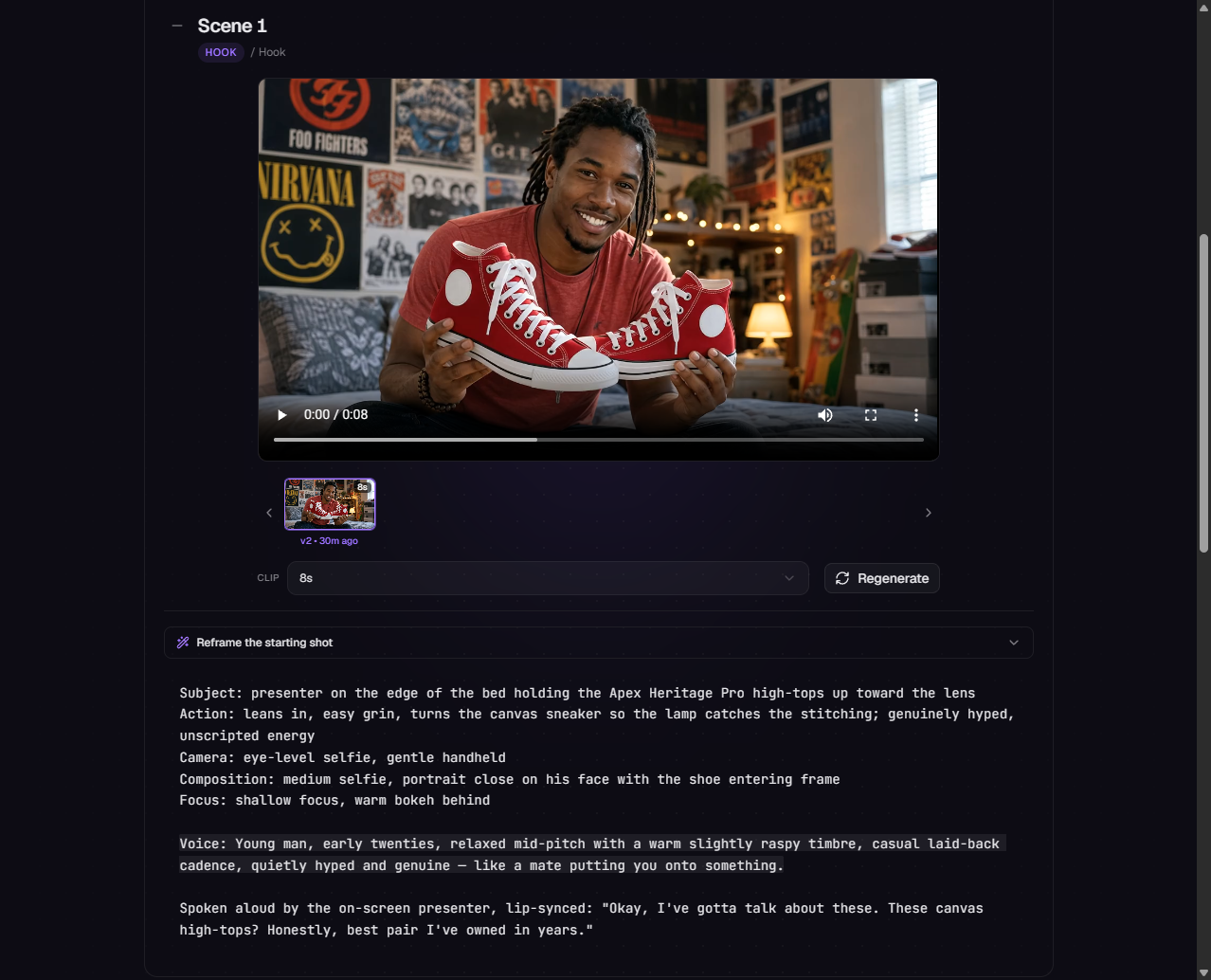
Your brief, broken into shots — approve it, re-roll any single take, or rewrite a line before it moves on.
You watch every clip come back as it renders. Something not landing? Re-roll that single shot into a fresh take, rewrite its line, or flip back to an earlier version — every take is kept, and the rest of the ad stays exactly as it was. I re-rolled the detail shot once to get his hand out of the way of the stitching; the hook and the sign-off landed first try.
Only when the whole list looks right does it move on.
Step 5 — Finish in timeline
The approved ad lands in TurboClip Studio — the same editor the rest of TurboClip is built on — and this is where a good clip becomes a finished ad. For a review, the finishing touches are small but they're what make it post-ready:
- Auto-transcribed captions on every spoken line — because most of the feed watches on mute. I didn't type a word: the editor transcribed his dialogue straight off the audio and dropped a caption track onto the timeline, styled and synced to what he says. You can see that caption track running along the bottom of the timeline in the screenshot below.
- A lower-third product title — a clean "Apex Heritage Pro" fading in over the closing beat.
- A beat retime — I trimmed the dead air before his first word so the hook hits instantly.
- An optional end card — a simple "grab a pair" CTA on the last frame.
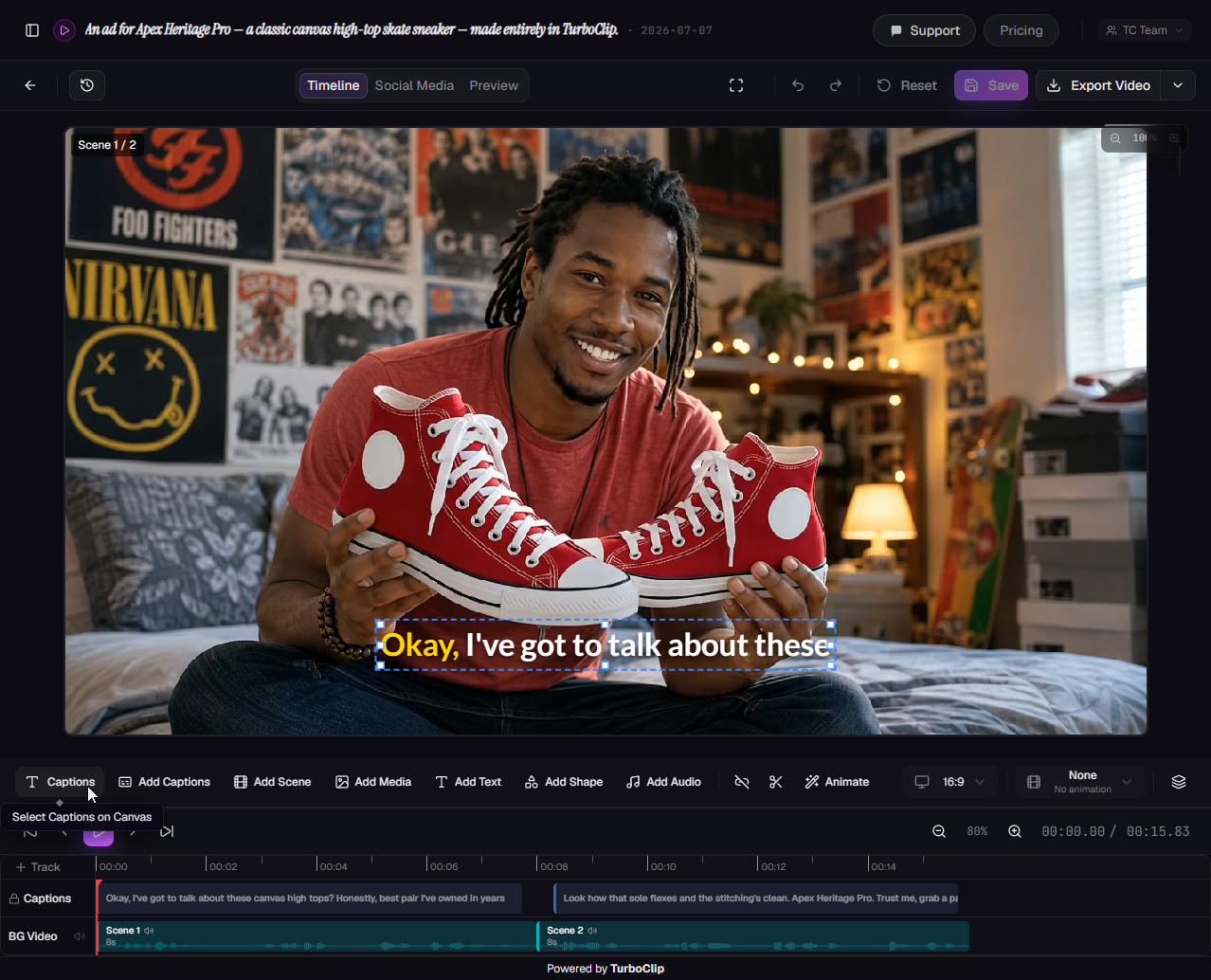
The same editor the rest of TurboClip runs on — auto-transcribed captions, titles and trims, then export.
Then export at 1080p, ready to upload. No downloading clips into another editor, no round-trip — reference frame to finished file in one place.
Make it yours
The format travels to any product someone could hold up and vouch for — which is most of them. Change three things and it's your ad:
- The reference image — a new character, a new room, and your product in their hands (Step 1).
- The product — drop your product photo in when you generate that frame.
- The lines — how your customer actually describes it, in their words.
Everything else — the shots, the timing, the voice, the cuts — the creator writes for you. Hit Recreate below and start from mine.
I can't wait to see what you make with this. Tag us when you post it — I watch every single one.

Graham O'Neale
Founder & CEO