One starting point.
A world of possibilities.
Connect images, video, and music in one visual workspace. Build on your best ideas, explore whole sets of variations, or ask your Canvas Agent to plan and build the workflow with you.
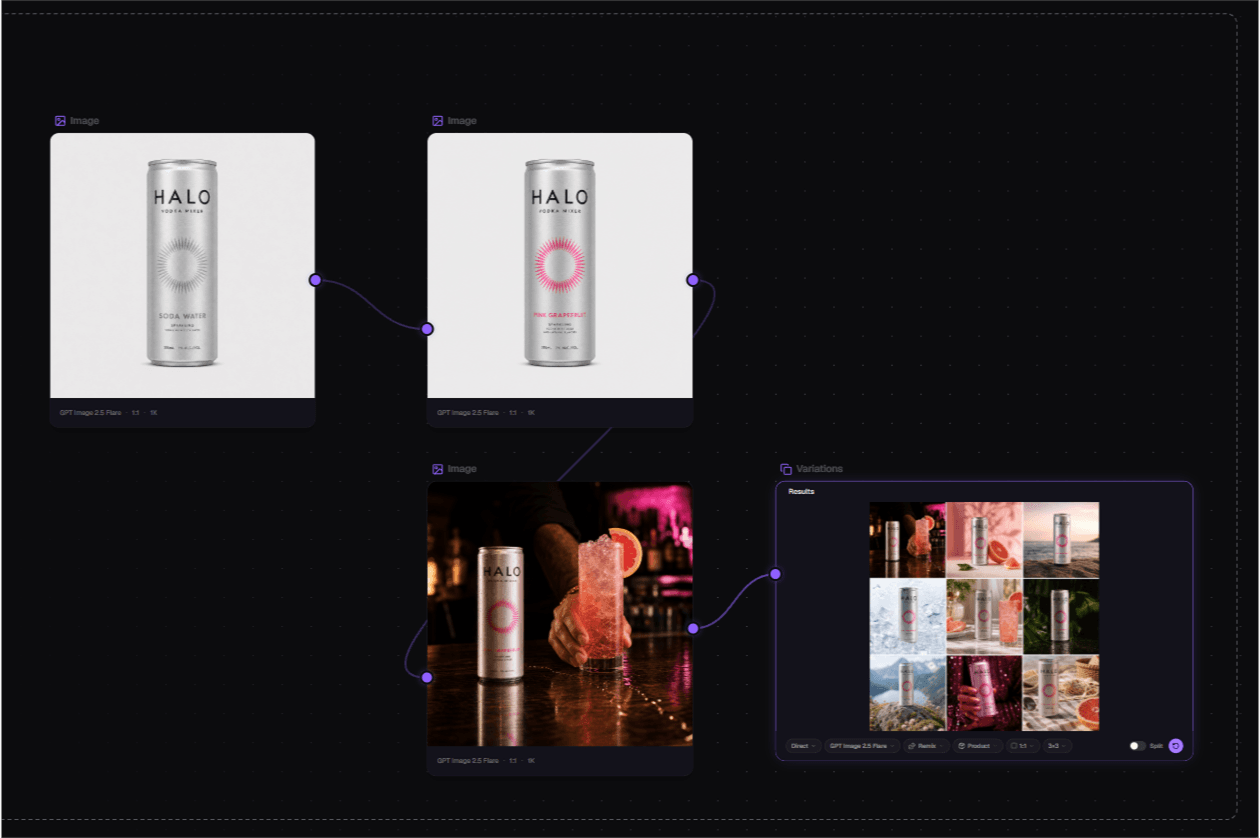
Every result can be
the next beginning.
Start with a reference image. Connect it to a new design, put that design in a lifestyle scene, then explore a whole board of variations. Each result becomes a reference you can carry into the next step.
- See how an idea develops, with every connection in view.
- Refine one step or branch into a new direction.
- Keep the results you love and build on them.
One product.
Many ways to show it.
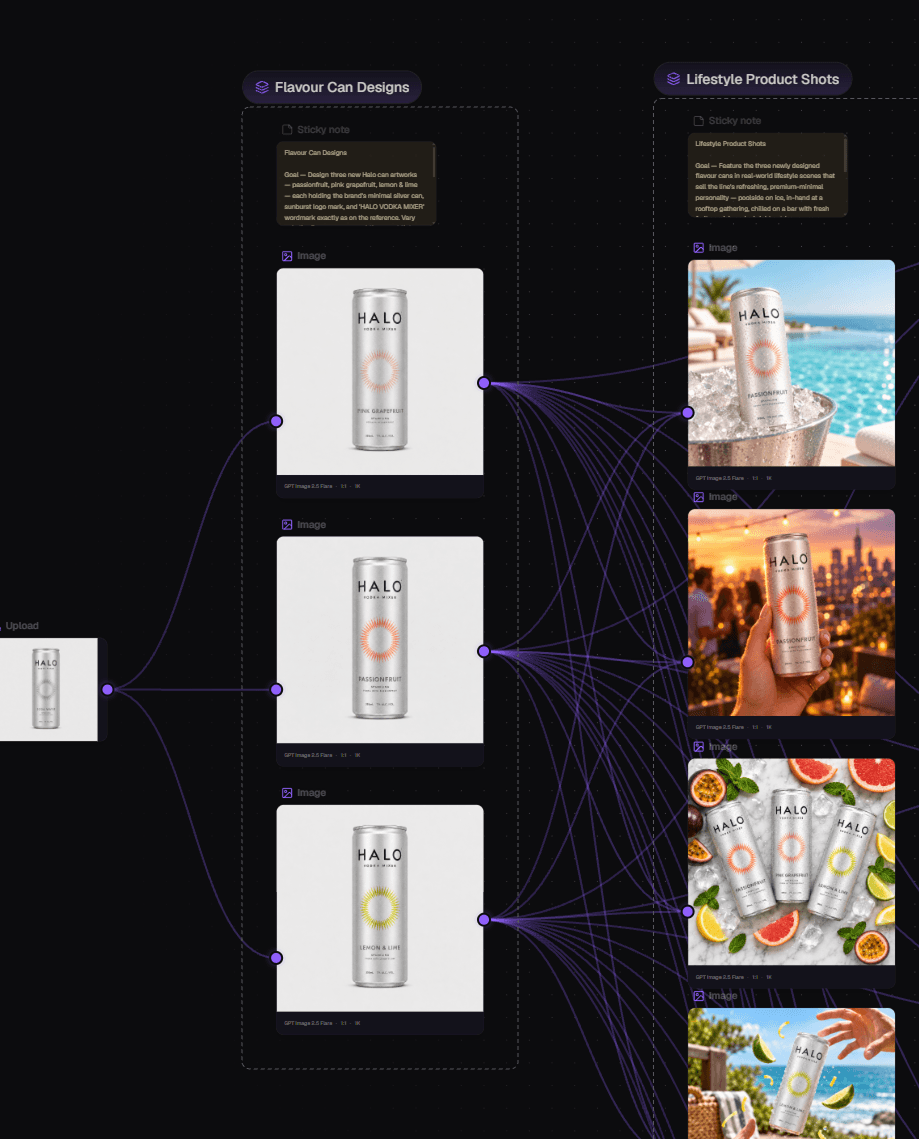
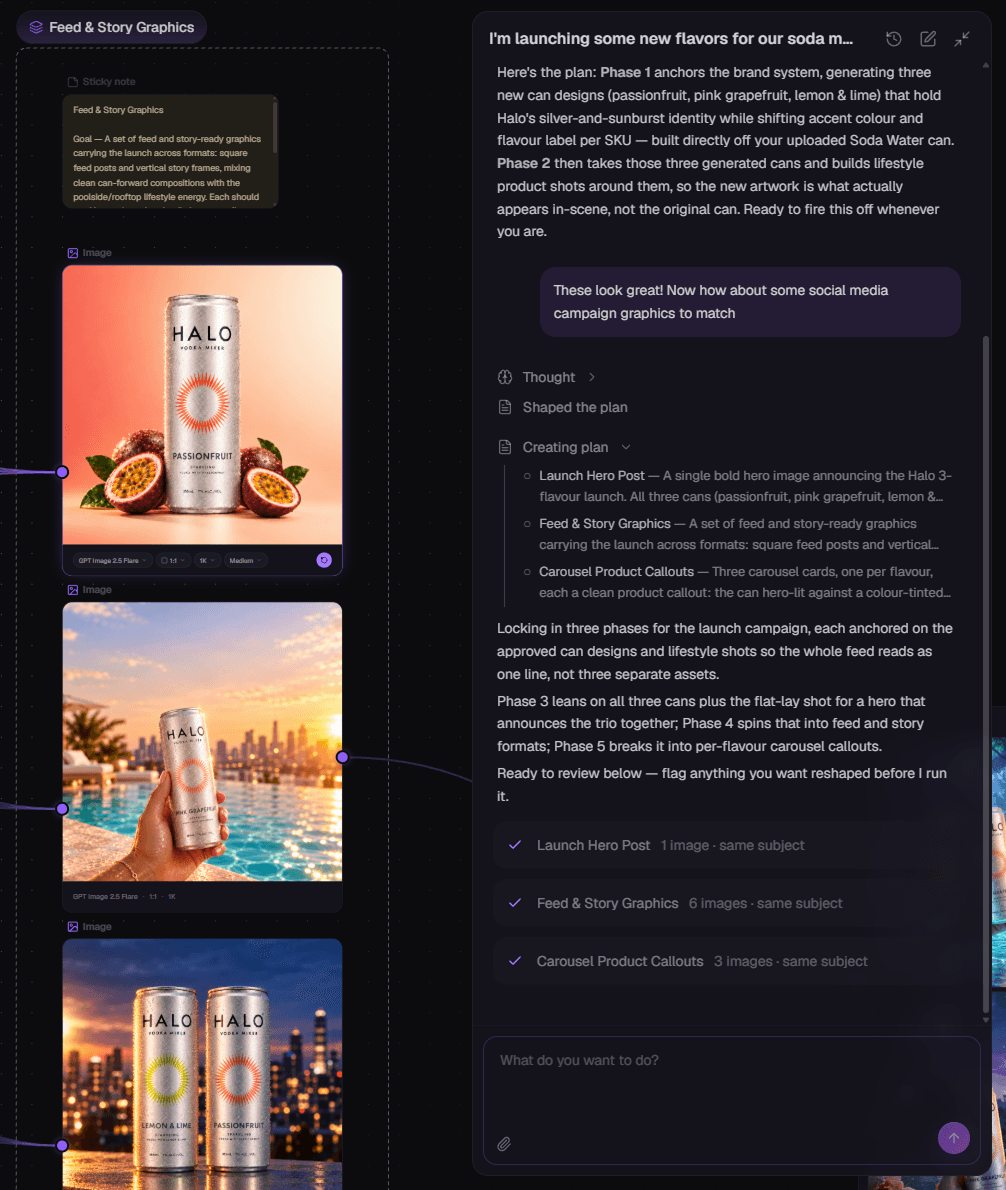
A campaign needs more than one good image. Develop a family of product designs, then use those results together as references for new scenes and compositions.
Here, one HALO can becomes three flavor designs. Those designs feed into lifestyle shots, keeping the creative work connected to the same starting point.
- Combine multiple image references in the next generation.
- Organize each stage into a named group with its own brief.
- Explore concepts for launches, social posts, and campaign tests.
Find a direction.
See where it takes you.
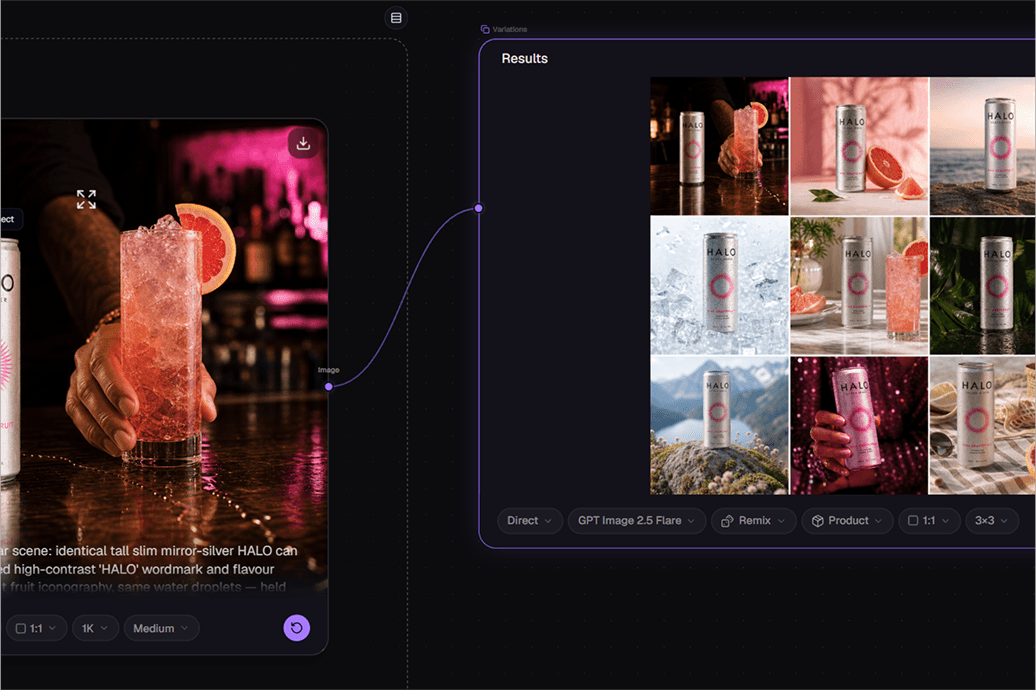
Turn one generated image into a board of possibilities. Choose a direction, change the prompt, and use the result as the reference for a more focused next step.
Explore the range
Take a product scene into new settings, lighting, and compositions with a Variations node.
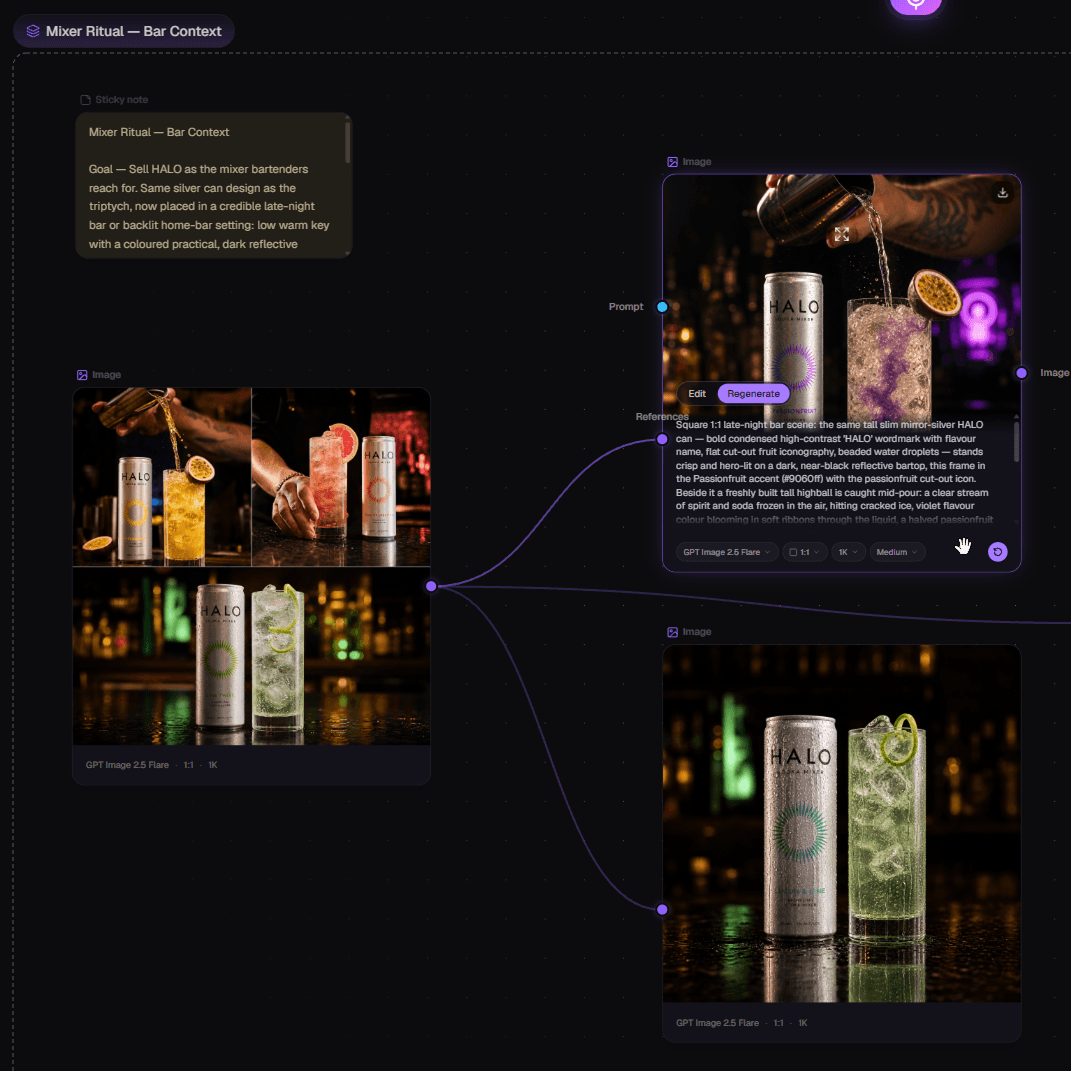
Develop the strongest idea
Use the concept board as a reference, then refine individual shots with their own prompts.
Talk through the idea.
Build it together.
Ask a question, explore a creative direction, or hand your agent a bigger brief. It can plan the work, create and connect nodes, and build on the images already on your canvas.
“These look great. Now make some social media campaign graphics to match.”
Your conversation stays connected to the work. Review the proposed plan and estimated credits, then see the board take shape. Image stages build on earlier results; video nodes are prepared for you to generate when you’re ready.
Same character.
A new adventure.
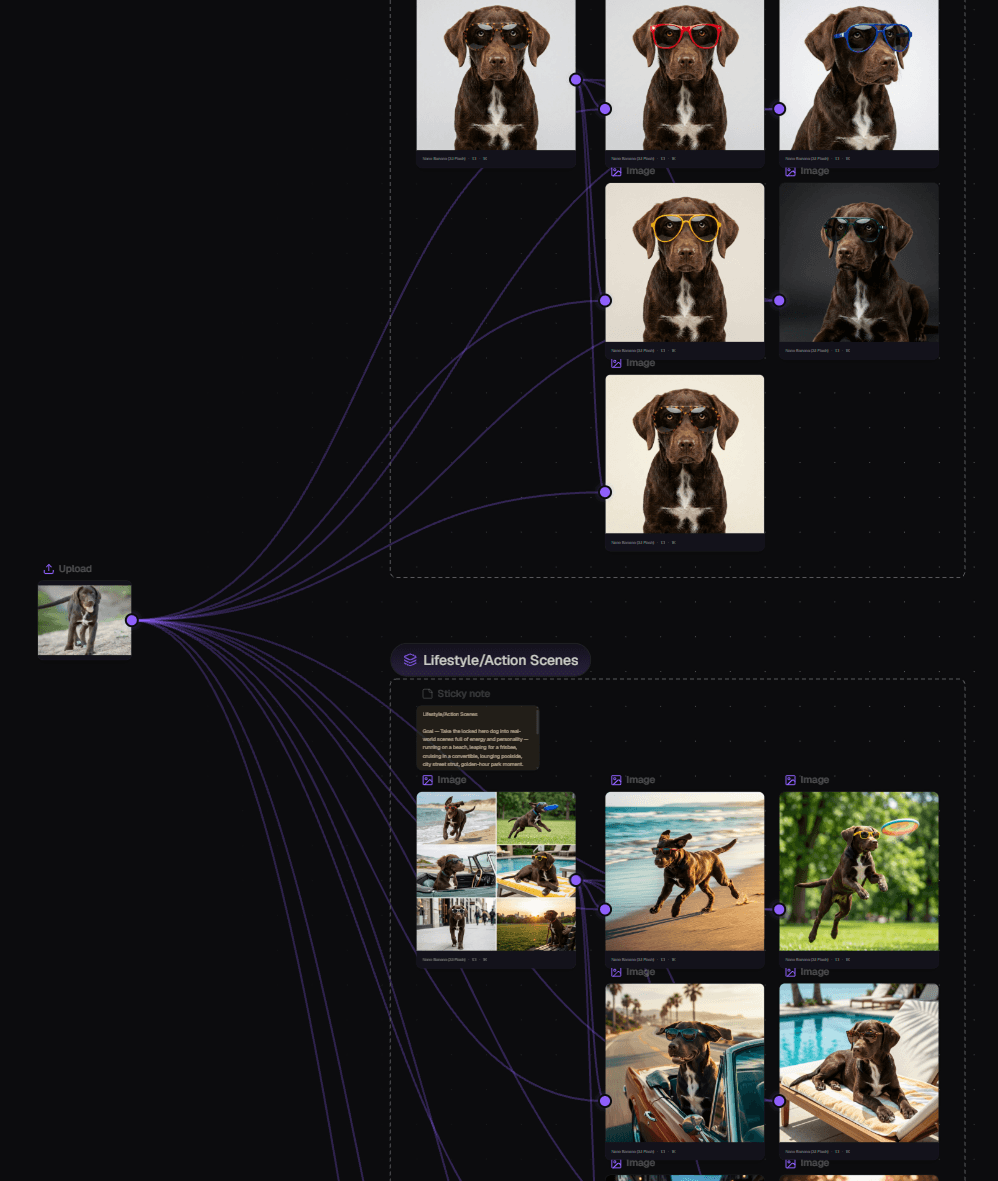
Bring a character, a piece of artwork, or a playful idea. Explore new looks and settings while using your original image as the reference.
This dog’s photo becomes a set of sunglasses looks, then beach scenes, poolside portraits, and action shots. The same connected workflow works for visual stories, concepts, and creative experiments.
Drag a connection.
Choose what comes next.
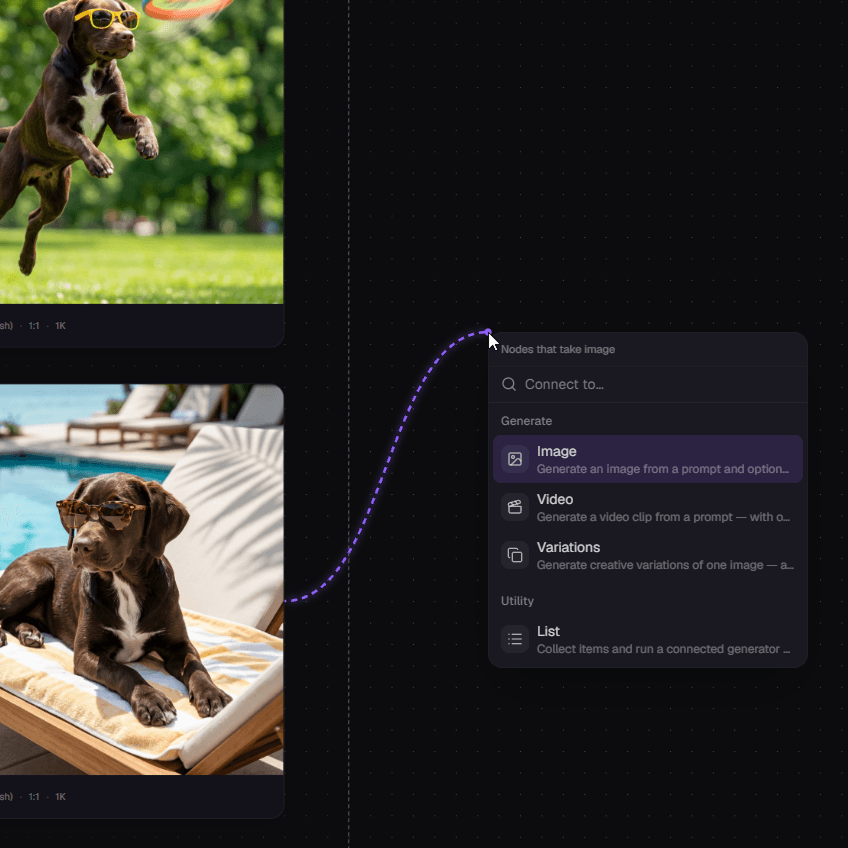
Pull a wire from an image and Canvas shows the nodes that can use it. Create another image, generate a video, explore variations, or collect it in a List.
You can also wire a List into a generator to run once per item. Build a set of prompts, collect the results, and connect the next stage.
A few building blocks.
Your way of creating.
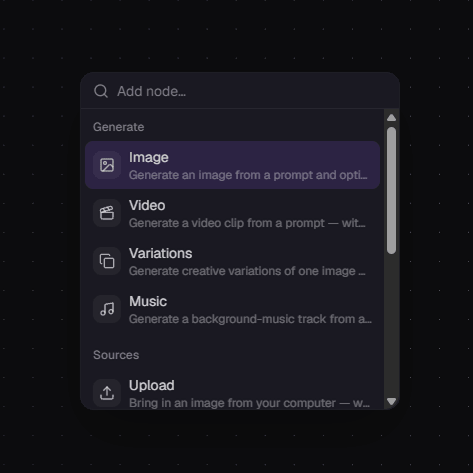
Start with any of these ten node types, then connect them into your own workflow.
- ImageGenerate an image from a prompt and references.
- VideoCreate clips from prompts, images, or supported video inputs.
- VariationsExplore a grid of creative takes from one image.
- MusicGenerate a soundtrack from a description.
- UploadBring an image from your computer.
- AssetsReuse media from your library.
- TextWrite prompts and reusable instructions.
- AssistantDevelop ideas or turn a request into text or a list.
- ListCollect prompts or media and run batches.
- Sticky NoteKeep the brief and notes beside the work.
Powered by the best models in AI.
Every generator node reaches the whole bench. Wire an image, clip, or music node to any frontier model, hand the direction to a top text model, and swap any of them the week a better one ships — the graph you built stays exactly the same.
Bring the reference.
Build the possibilities.
Start with one image, connect a workflow, or tell your agent what you have in mind.